

- Add the Publive MCP server in Claude or in ChatGPT.
- Sign in to Publive with your Publisher ID and API credentials.
Prerequisites
- A Claude or ChatGPT account that can add connectors.
- Your Publisher ID, and your CDS credentials, CMS credentials, or both. Each set has an API key and an API secret. To get them, contact support@thepublive.com.
Add the Publive MCP server
- Claude
- ChatGPT
1
Open connectors
In Claude, go to Settings → Customize → Connectors.
2
Find Publive
Search for Publive. Next to Publive, click Connect.
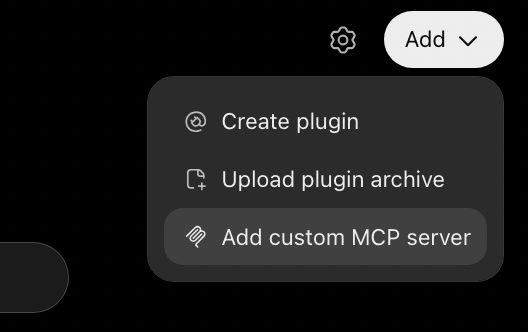
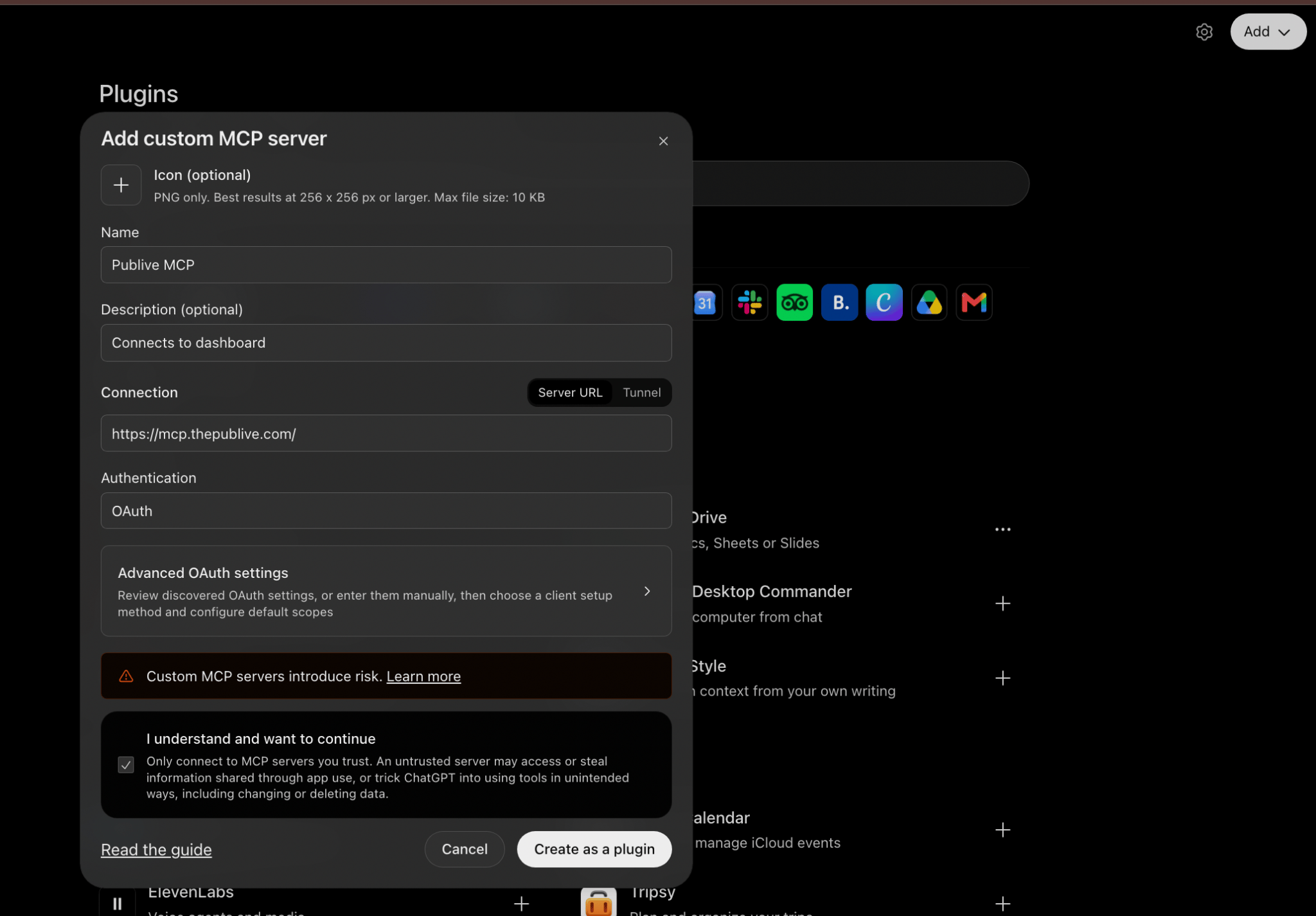
Sign in to Publive
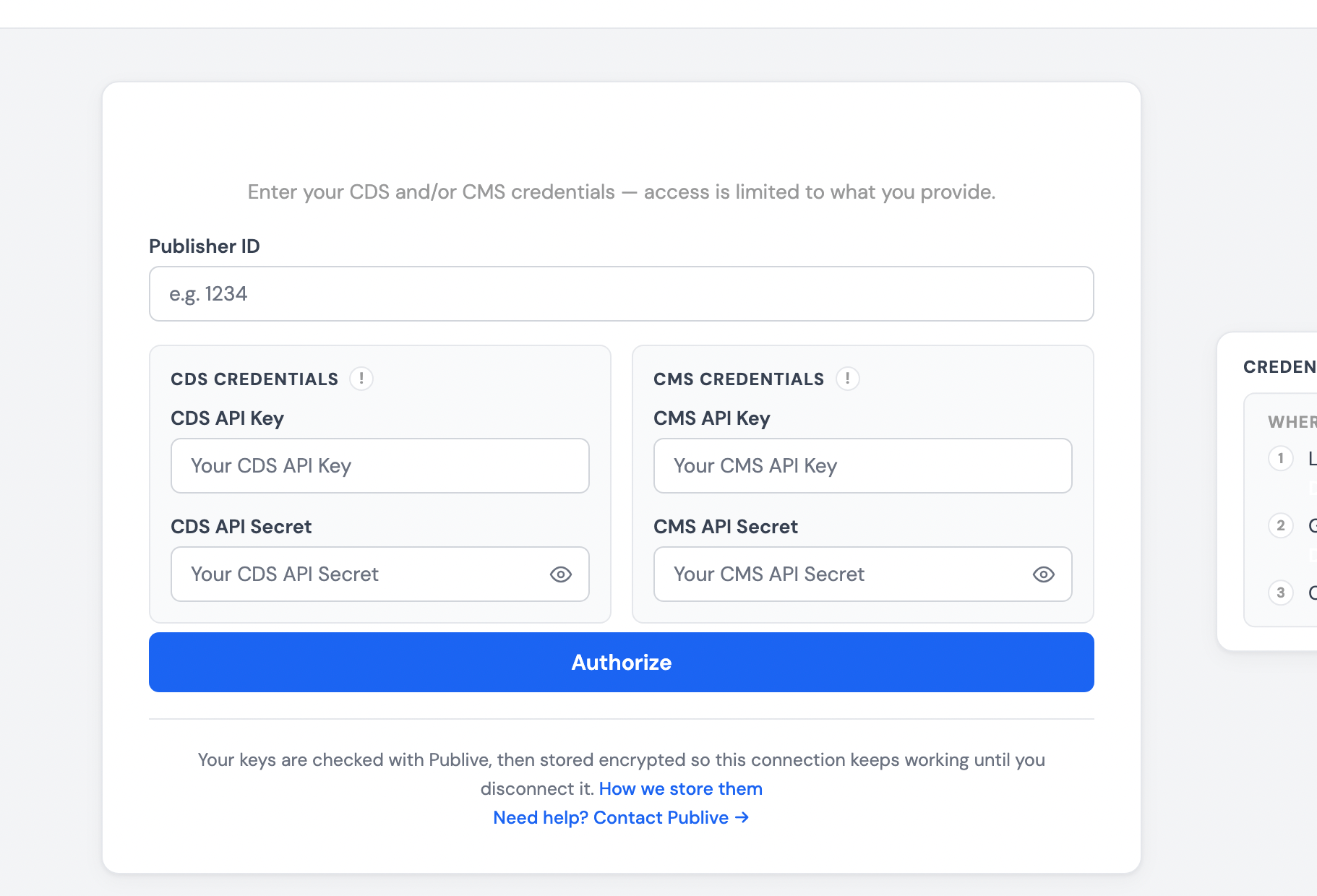
Claude and ChatGPT open the same Publive sign-in page.- In Publisher ID, enter your Publisher ID.
- Enter your credentials:
- In CDS Credentials, enter the CDS API Key and the CDS API Secret.
- In CMS Credentials, enter the CMS API Key and the CMS API Secret.
- Click Authorize.
Ask about your data
Ask your questions in plain language. The AI assistant reads the data from your Publive workspace and writes the answer. Examples:- “Using Publive MCP, list the topics in my account.”
- “What is my brand visibility for the last 30 days? Compare it with my top competitor.”
- “Which of my tracked prompts do not mention my brand?”
- “Which domains do AI platforms cite most for my Home Loans topic?”
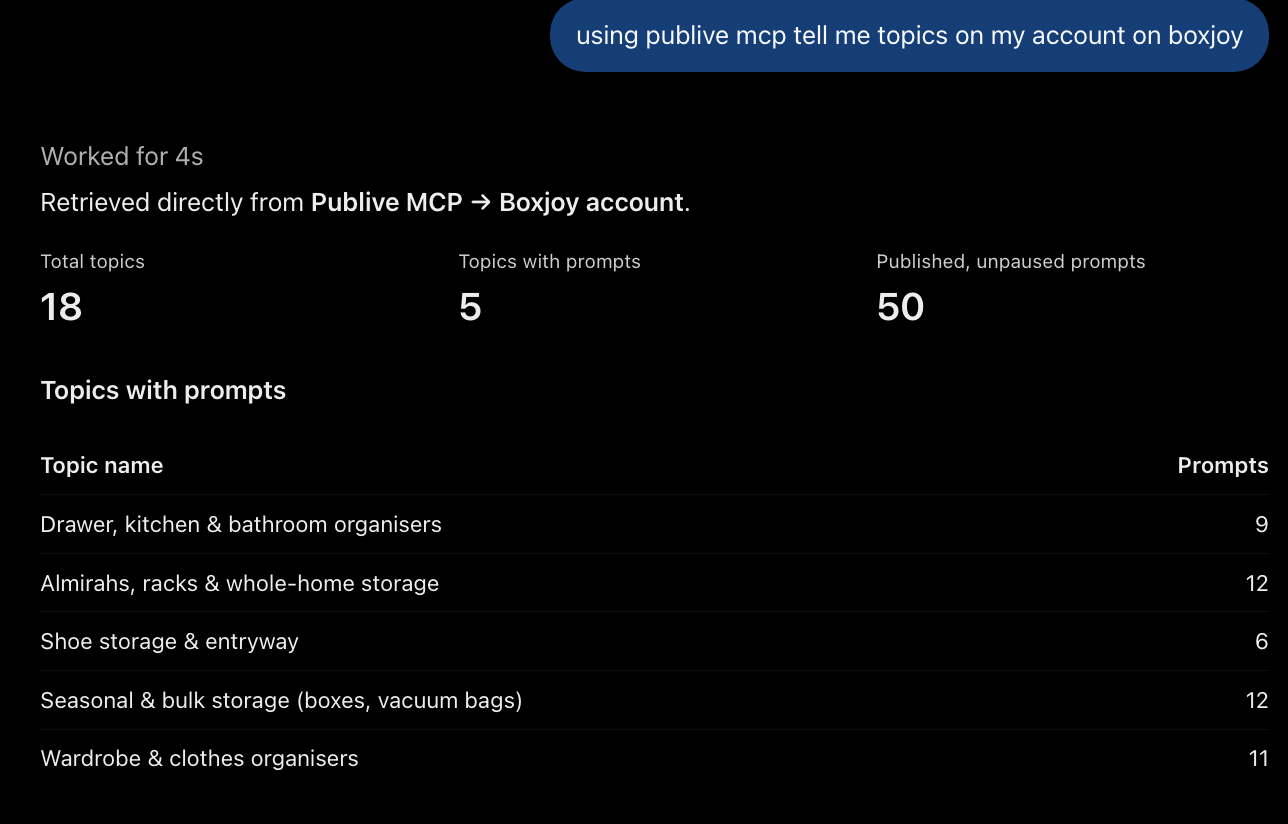
The AI assistant writes its answer from your data, but it can make mistakes. Before you share a number or act on it, compare it with the AXP dashboard.
Next steps
Build an AI visibility action report
Use the master prompt to turn your MCP data into an action plan for one topic.
Improve your AI visibility
The full cycle: choose topics, track prompts, act, and measure.
Brand Visibility
The same data in the AXP dashboard.
Metrics and fields
How AXP calculates each metric.