

Availability
This feature is available on the Custom Enterprise plan only. To enable it for your workspace, contact support@thepublive.com.New entries start in the workflow’s first stage the moment they are created. There is no separate submit action.
The content list
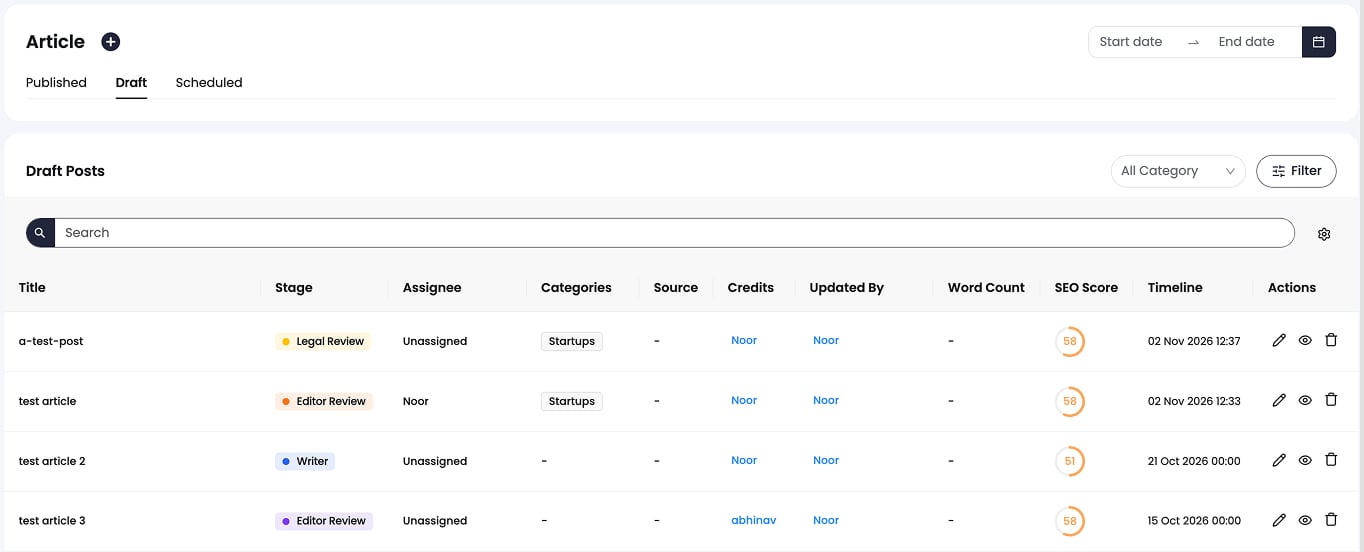
For content types with a workflow, the content list gains:- a Stage column showing the stage name on its stage colour
- an Assignee column
- a Stage filter to pick one or more stages. In a view that spans several workflows, stages are grouped under their workflow name.
- an Assignee filter, with Assigned to me as the first option
The workflow panel
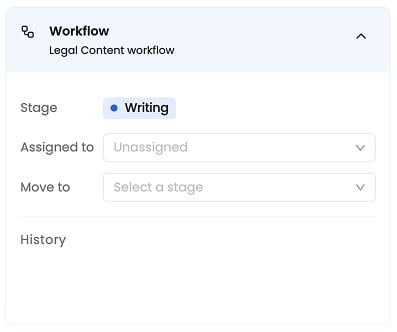
Open an entry and look for the Workflow panel in the right-hand sidebar. It shows:
For content types without a workflow, the panel does not appear at all.
Move an entry
1
Choose a destination
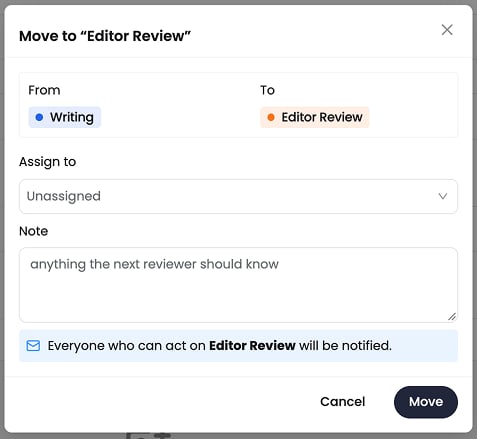
Open Move to and pick a stage. It lists only the stages you are allowed to move to.
2
Assign to (optional)
Set who should pick this up at the new stage. It defaults to Unassigned. You can also skip this and assign it later from the panel.
3
Add a note (optional)
The dialog also shows who will be notified.
4
Confirm
Select Move. Selecting Cancel does nothing.
- Only the named roles or members can move this entry out of the stage.
- You moved this entry to the stage, so someone else must move it on. This applies when Prevent self-advancement is on.
There is no separate “send back” action or dialog. A workflow has no fixed forward or backward path: a stage’s Next stages can point anywhere, including to a stage earlier in the list. Moving an entry there uses the same Move to dialog as any other move, with the same optional note.
Override a stage
Override actors are set once for the whole workflow, not per stage. Admins and Owners are always override actors and cannot be removed from that role. A workflow can also name more roles or members as override actors in its settings. See Add override actors. Override actors see a separate, visibly distinct Override stage action. It is not an option in the Move to picker.- Choose any stage as the destination, including a publish-ready stage. The dialog lists the stages being skipped.
- Enter a reason. The Override button stays disabled until you do.
- Select Override.
Assign an entry
There are two ways to set the assignee:- While moving an entry. The move dialog has an Assign to field. You can hand the entry to someone the moment it reaches their stage.
- From the panel, at any time. Open Assigned to to set, change, or clear it. Setting an assignee emails them.
Editing an entry in a stage
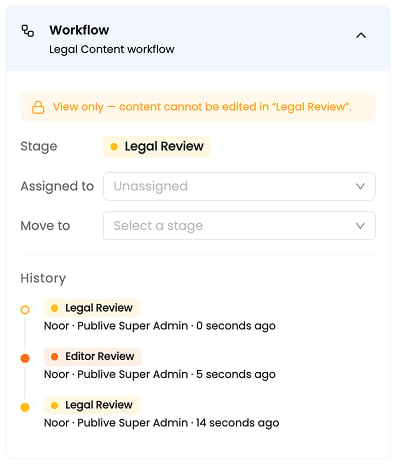
The current stage’s Who can edit setting applies on top of the permissions you already have. A stage can only restrict editing. It never grants it. When the stage prevents you from editing, the entry opens read-only with a banner naming the stage, for example:View only — content cannot be edited in “Legal Review”.
Publishing from a stage
You can publish or schedule an entry only while it is in a publish-ready stage, and only if you have publish permission. Otherwise the Publish control is visible but disabled, and explains which stage the entry must reach and which stage it is in.The timeline
The History section of the panel lists every stage change, newest first. Each item shows:- the stage moved to, on its colour
- who moved it, and their role at the time
- when
- the note, if there was one
- for an override, an Override marker, the reason, and the stages skipped
- for the first entry, who created it and when
Next steps
Notifications and audit trail
Who gets emailed for each event, and what is recorded.
Lifecycle and edge cases
What happens when live content is edited or two members act at once.