

Availability
This feature is available on the Custom Enterprise plan only. To enable it for your workspace, contact support@thepublive.com.Prerequisites
- Content Workflows is enabled for your workspace. See the overview.
- You are an Admin, an Owner, or hold a role with workflow configuration permission.
- Any reviewer role your stages need already exists, for example Marketing Reviewer. A workflow never creates roles of its own. It references the roles and members you already have. See Content Access Policies for how roles are set up.
Where to find it
There are two entry points, and both show the same assignment:- Configuration → Workflows to build and manage your workflows.
- Content type settings, where the Workflow row shows which workflow applies to that content type, with a link into the editor.
The workflow list
The list shows each workflow’s:- Name
- Content types, as chips
- Stages, a count shown as colored dots
- Status, a toggle to turn the workflow on or off
- Last edited
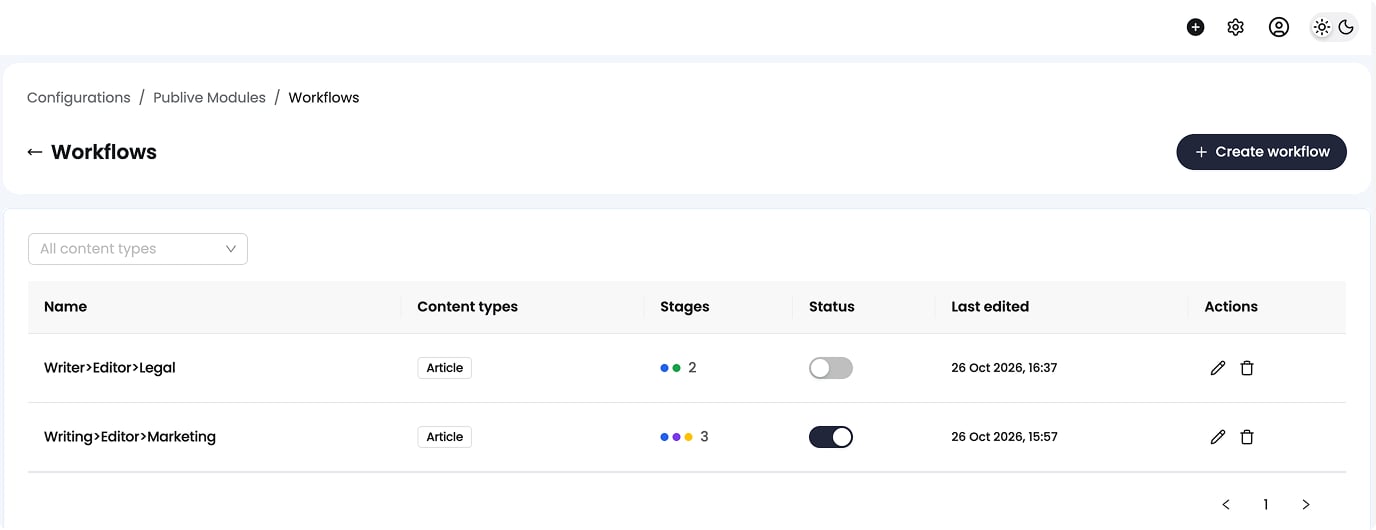
Create a workflow
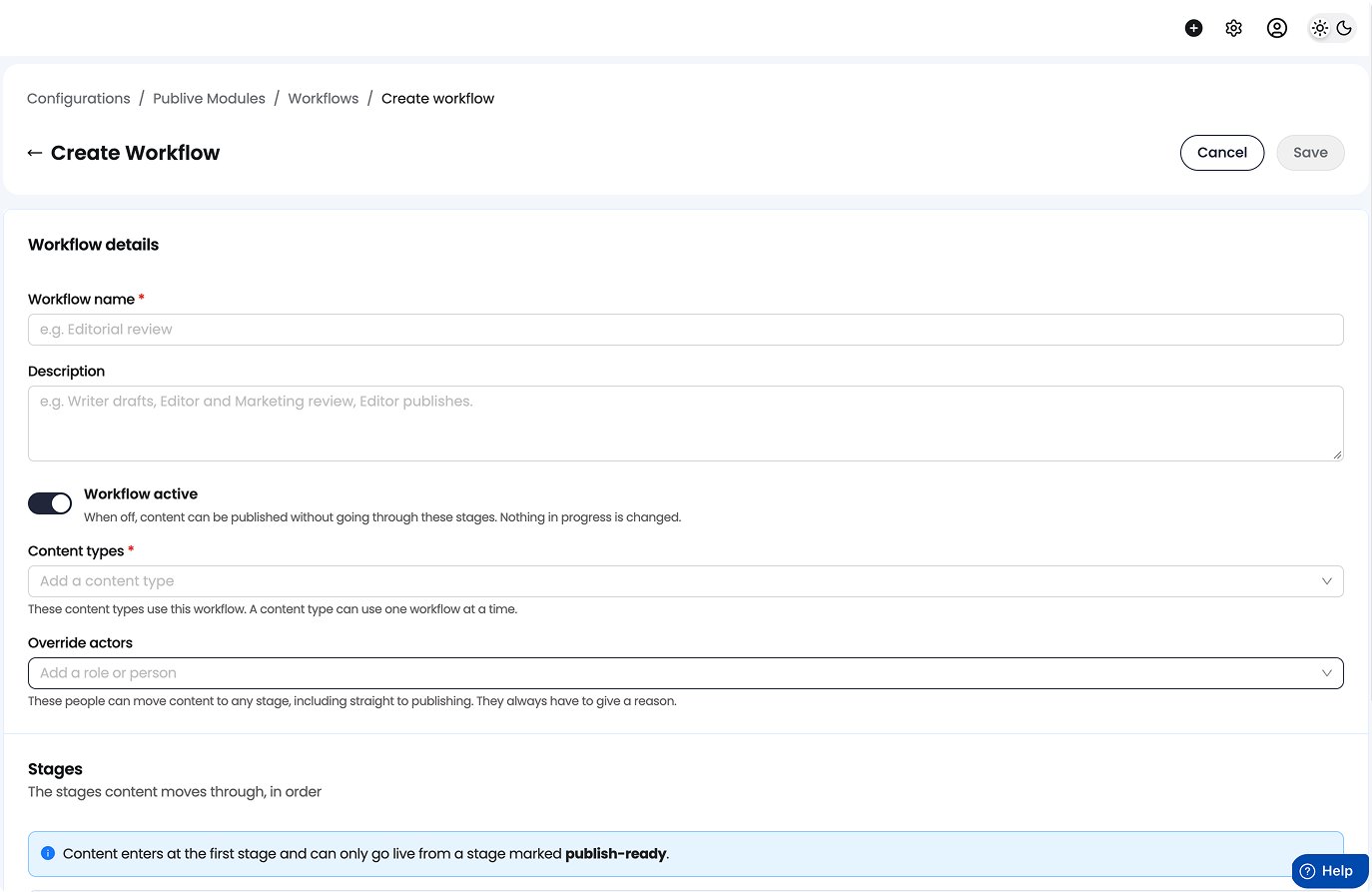
1
Enter the details
Give the workflow a Workflow name (required, unique in your workspace) and an optional Description. Use the Workflow active toggle to turn it on or off. When it’s off, content publishes without going through these stages, and nothing already in progress changes.
2
Choose the content types
Pick one or more content types for this workflow to apply to. This field is required. System and custom content types are both available, and a content type can use only one workflow at a time. If a content type you add already uses another workflow, that workflow’s name is shown. You cannot add it until it is released from that workflow.
3
Add override actors (optional)
Admins and Owners are always override actors for this workflow and cannot be removed. Use this step to name more: one or more roles, one or more members, or a mix of both. An override actor can move content to any stage, including straight to publishing, but always has to give a reason. See Override. You can leave this step empty and rely on Admins and Owners alone.
4
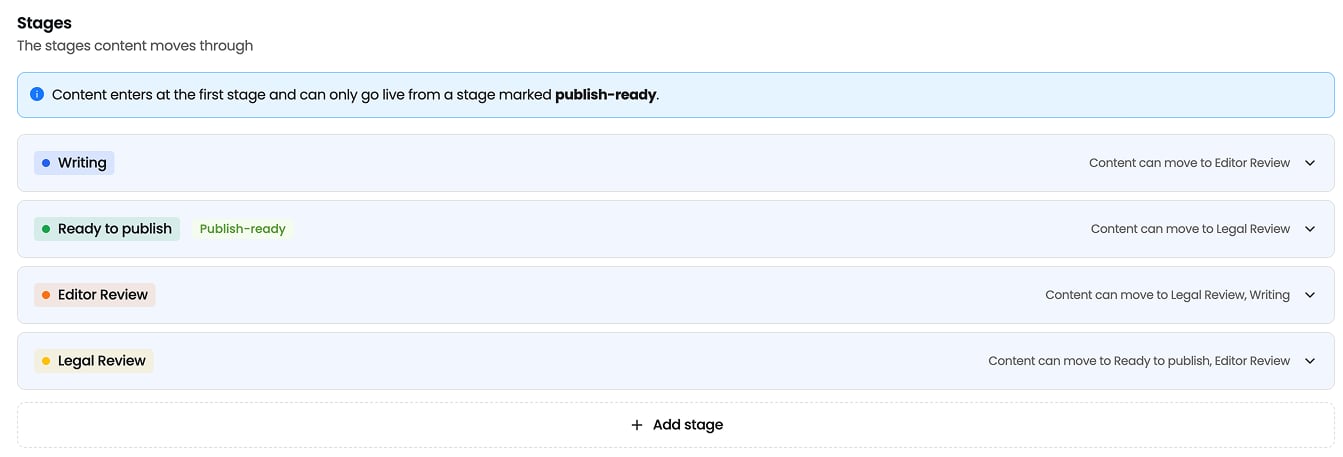
Build the stages
Add, duplicate, delete, and drag to reorder stages. Each row shows the stage colour, name, a publish-ready marker, and a summary of who can act. Select a row to open the stage editor.
5
Save
Fix anything that blocks saving. See Validation.
Stage settings
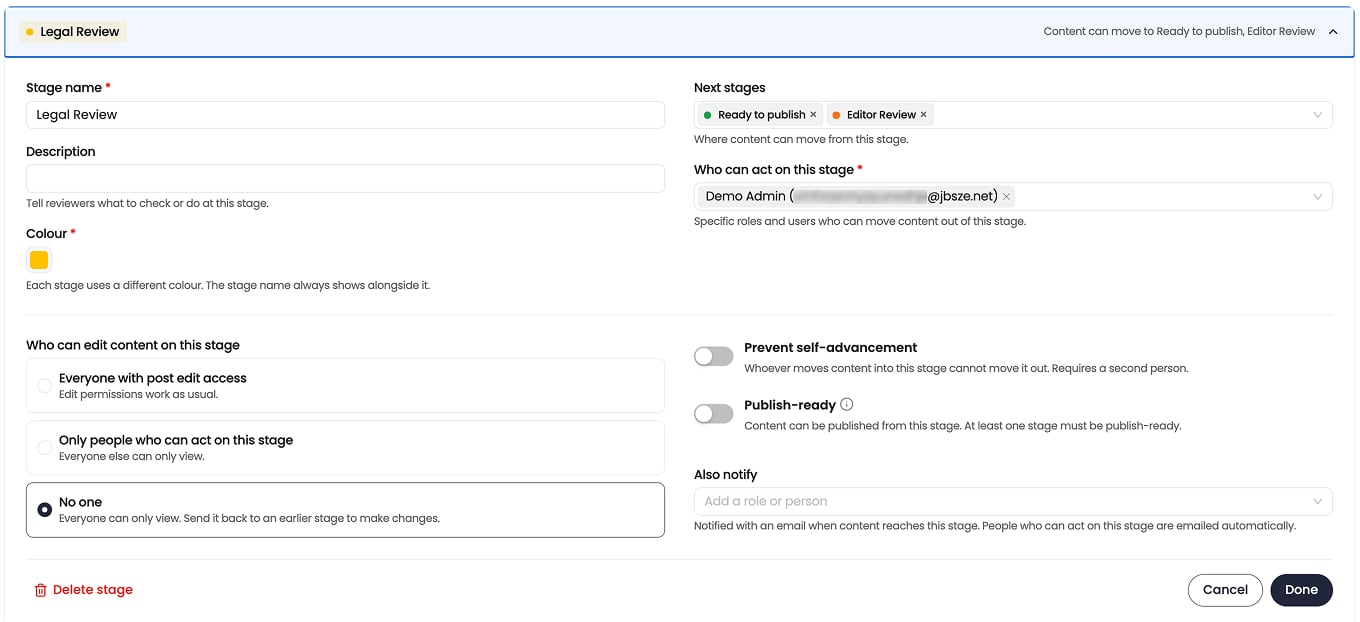
Who can edit only restricts. It never gives edit access to a member who would not otherwise have it.
Prevent self-advancement
Switch Prevent self-advancement on for every review stage and no single member can walk content from draft to live. It also stops authors approving their own work. The author moves their entry out of the first stage. With the rule on at the first review stage, they cannot also move it out of that stage. There is no separate “author cannot act on their own content” setting. This one rule covers it.Validation
These block saving:
The editor also warns, without blocking, when:
- a stage cannot be reached from any other stage. The first stage is exempt, and a stage that is only ever entered by override is legitimate.
- a stage’s actors resolve to no active member, so content that reaches it will be stuck.
Example: a four-stage editorial workflow
Applies to the Article, Video, and Photo Gallery content types.
Override actors: Admin and Owner, by default. No further actors added.
A writer drafts in Writing and moves the entry to Editor Review. An editor reviews it and moves it to Marketing Review. A Marketing Reviewer approves it to Ready to Publish. An editor then publishes it.
Suppose one member holds both the Editor and Marketing Reviewer roles. Prevent self-advancement still stops them moving the entry out of Marketing Review right after they moved it in. Approval and release stay separate acts by different people.
Edit a workflow that is in use
Changes take effect immediately for all content in the workflow. There are no per-entry versions of the rules. Deleting a stage. The confirmation tells you how many entries are in the stage. Those entries return to the first stage, and their history is kept. Turning a workflow off. The confirmation lists how many entries are in review. Turning it off:- changes no statuses
- publishes nothing
- returns nothing to Draft
- returns publishing to normal permissions
- keeps stage history
Next steps
Review and move content
See how members move entries through the stages you built.
Lifecycle and edge cases
What happens when live content is edited, a stage is deleted, or two members act at once.